
From Headshot to Host: Building Talking-Avatar Videos with P-Video Avatar
Learn how P-Video Avatar turns a single portrait into a talking video using a script or audio track, with practical tips for better lip-sync and results.
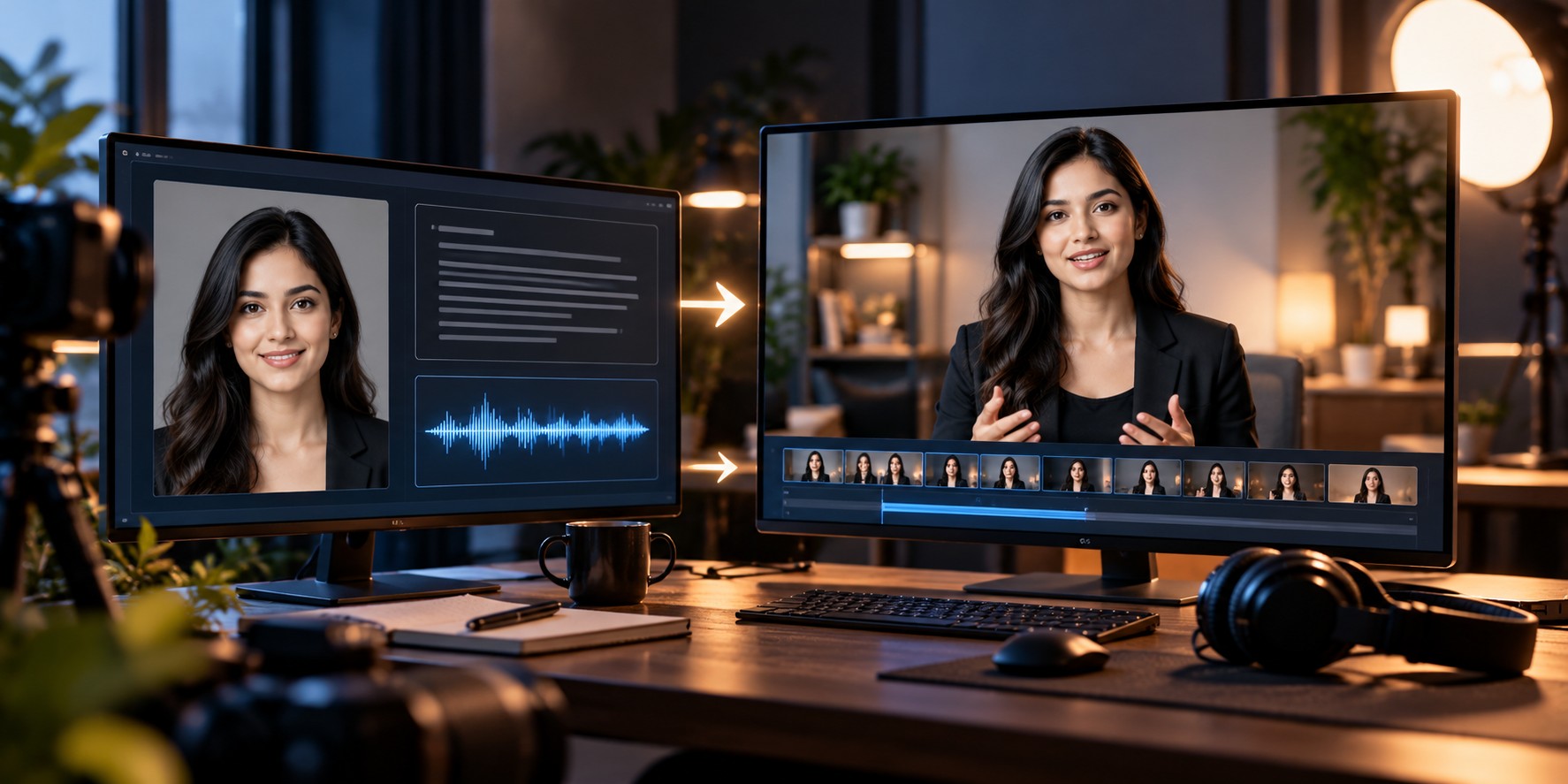
Imagine updating a product announcement without scheduling another recording session. The script changes, the audio is ready, but the presenter is unavailable—or the original video never existed in the first place.
P-Video Avatar addresses this kind of production problem. Developed by Pruna AI, it animates a single portrait into a talking-head video. You can provide a script for generated speech or supply an existing audio recording for the avatar to follow.
The interesting part is not just making a photograph move. It is creating a repeatable workflow in which a still image becomes a presenter for tutorials, product explainers, training material, and other short-form video content.
This guide explores how the model works, how to prepare better inputs, when to use a script versus recorded audio, and how to evaluate the final video before publishing it.
What P-Video Avatar Actually Does
P-Video Avatar is a talking-avatar video model. It takes a portrait image and uses either text intended to be spoken or an audio track to generate a video of the pictured person speaking.
With a script, the workflow combines speech generation and avatar animation. With supplied audio, the model uses that recording to guide the speaking performance and lip synchronization.
The visual identity and starting frame.
The words and timing of the speech.
An animated presenter with speech.
This is different from a general text-to-video model. You are not primarily asking it to invent a new environment, camera sequence, or cinematic scene. You are starting with a specific portrait and asking the model to turn that image into a speaking performance.
Two Ways to Make the Avatar Speak
One of the most useful decisions happens before generation: choosing whether the model should create the voice or follow an existing recording.
Route A — Start with a script
Provide the portrait and the text you want spoken. Select a supported voice and language where those options are exposed by the endpoint.
Route B — Start with recorded audio
Provide the portrait and an existing audio file. The avatar uses that recording to drive its speaking performance rather than generating a replacement voice from the script.
If both a script and an audio file are provided, the documented model behavior gives priority to the uploaded audio. In that situation, do not assume that editing the script will change the spoken words while the audio remains unchanged.
The Input Image Can Make or Break the Result
A talking-avatar model has a different job from a conventional video generator. The face in the source image is the visual foundation of the output, so a poor starting portrait can remain a problem throughout the clip.
Before generating, check the image for these characteristics:
- A clearly visible face: The eyes, mouth, and major facial features should be easy to distinguish.
- A natural, front-facing pose: A straightforward portrait is a sensible starting point for a talking-head workflow.
- Good lighting: Avoid strong shadows that hide facial features or make parts of the face difficult to see.
- Enough image detail: Use a sharp source image rather than a compressed thumbnail or a face cropped from a distant group photograph.
- A suitable composition: Leave enough room around the head and shoulders for a natural presenter-style frame.
- A consistent visual style: If the video will sit beside other content, choose a portrait whose lighting and background fit that presentation.
These are practical preparation guidelines, not a guarantee of output quality. Test a representative portrait before producing a large batch of videos.
Write for the Screen, Not Just the Page
A script that reads well in an article may sound awkward when spoken aloud. Long sentences, nested clauses, abbreviations, and several ideas packed into one paragraph can make generated narration harder to follow.
Instead of writing a dense block of copy, structure the message around one idea at a time. Keep the opening direct, use short sentences, and read the script aloud before submitting it.
"Our platform provides a variety of tools that users can utilize in order to improve productivity and manage multiple tasks more efficiently."
"Get more done with one simple workspace. Organize your tasks, keep track of your priorities, and spend less time switching between tools."
The second version uses shorter phrases and gives the presenter clearer places to pause. It also communicates the benefit before describing the details.
A Practical Workflow for Product Videos
Consider a SaaS company that needs to create a series of feature announcements. The team wants a consistent presenter, but product updates happen too frequently to record a new video for every change.
Choose an approved portrait
Select a high-quality image of the presenter, with permission to animate their likeness.
Prepare the announcement
Write a concise script that explains the feature, the benefit, and the next action for the viewer.
Generate a short test
Check facial movement, lip synchronization, voice suitability, and the overall framing before making a full batch.
Review the finished clip
Check the actual spoken words, mouth movement, facial consistency, and audio quality. Correct the source or script if something feels unnatural.
Finish the video for publication
Add branded opening and closing frames, captions, screen recordings, or supporting visuals in your editing workflow where needed.
The advantage is repeatability. Once the portrait, script style, and review process are established, a team can update the spoken message without rebuilding the entire production workflow each time.
How to Make the Presenter Feel More Natural
A technically synchronized mouth is only one part of a convincing talking-head video. Viewers also notice whether the expression, pacing, and visual presentation feel appropriate for the message.
Match the voice to the purpose
A training video benefits from clear, measured narration. A promotional announcement may need more energy. An instructional walkthrough should prioritize clarity over exaggerated performance.
Keep each clip focused
Divide a long presentation into meaningful sections when your workflow permits. Shorter segments are easier to review and replace if a single sentence or pronunciation needs correction.
Do not expect the portrait to become a full scene
P-Video Avatar is designed around a speaking portrait. If your project requires multiple camera angles, walking sequences, complex interactions, or extensive environmental action, plan to combine the avatar with other footage or use a model designed for broader video generation.
Check the entire clip, not just the opening
Mouth synchronization, facial expression, and image consistency can vary during a video. Watch the clip through to the end, paying particular attention to pauses, sentence transitions, names, and the final words.
Where Talking Avatars Are Most Useful
Product explainers
Explain features, demonstrate benefits, and publish updates without recording every revision from scratch.
Online education
Turn prepared lessons into presenter-led clips that can be reviewed and updated as material changes.
Internal training
Create repeatable onboarding messages, policy explainers, and short instructional videos.
Social content
Build a consistent presenter format for short educational clips, announcements, and recurring series.
Audio-led localization
Use approved localized recordings to create corresponding speaking-avatar videos, then review pronunciation and synchronization.
Interactive experiences
Prepare avatar clips for guided demos, character-based explanations, and other controlled video experiences.
720p or 1080p: Which Should You Choose?
P-Video Avatar documents two output resolution options: 720p and 1080p. The right choice depends on where the video will appear and how much detail the presentation needs.
| Output | Consider it for | Check before publishing |
|---|---|---|
| 720p | Drafts, internal reviews, and standard web previews | Facial detail, compression, and viewing size |
| 1080p | Larger displays and presentations where added detail matters | Source-image quality and final export requirements |
A higher output resolution cannot restore detail missing from the original portrait. Start with a clear source image, then compare the available resolutions at the actual size and platform where viewers will watch.
A Simple Quality-Check Scorecard
Before generating dozens of avatar clips, evaluate one representative example against the criteria below. This helps separate a visually impressive first impression from a video that is genuinely ready to use.
Do mouth movements follow the spoken words, including longer sentences and pauses?
Does the face remain recognizable and visually stable throughout the clip?
Are names, technical terms, and sentence endings spoken clearly?
Does the pacing feel appropriate, without distracting movements or awkward transitions?
Is the framing appropriate, the audio audible, and the content approved for publication?
If a clip fails one of these checks, identify the likely cause before regenerating. A pronunciation problem may require a script change; a poor facial result may call for a better portrait; a synchronization issue may require reviewing the audio input.
Integrating P-Video Avatar Into an Application
For developers, the main workflow is straightforward in concept: provide an image, choose a script-based or audio-based generation path, submit the request, and retrieve the resulting video.
1. Accept an authorized portrait image.
2. Collect a script or an existing audio file.
3. Validate the input and required parameters.
4. Submit the generation request.
5. Track completion or handle generation errors.
6. Retrieve the output video.
7. Preview, approve, and publish the result.
Video generation can take longer than a normal text response, so applications should handle asynchronous completion where required. They should also manage failed requests, output URLs, retries, and file retention instead of assuming every submission returns a finished video immediately.
For access through WhollyAPI, begin with the P-Video Avatar model page to review its current model details and supported configuration.
Check the WhollyAPI developer documentation before implementing the request. Use the endpoint and parameters actually exposed by WhollyAPI rather than copying a request format from a different serving platform.
What P-Video Avatar Is Not Designed to Replace
Talking-avatar generation is useful precisely because it focuses on a specific kind of video. It is not a universal replacement for filming, animation, or editing.
- Full cinematic generation: A talking portrait is not the same as generating an entire film scene with multiple actors and camera movements.
- A complete video editor: You may still need editing software for captions, transitions, branded graphics, screen recordings, and music.
- Guaranteed perfect lip-sync: Always inspect the result, particularly with fast speech, unusual pronunciation, or difficult audio.
- A substitute for consent: You must have permission to animate a real person's likeness and use the resulting video.
- A universal multilingual solution: Verify the supported voice and language options available through the endpoint you intend to use.
Frequently Asked Questions
What is P-Video Avatar used for?
It turns a single portrait into a talking-head video using either a text script or an existing audio recording. Common applications include explainers, training clips, product announcements, and presenter-led content.
Do I need a video as input?
No. The documented workflow starts with a still image and either a script or an audio file. The model generates the speaking video from those inputs.
Can I use my own recorded voice?
Yes. The model supports an audio-driven workflow. If you provide both an audio file and a script, the uploaded audio takes priority according to the documented behavior.
Which output resolutions are supported?
The documented model options include 720p and 1080p. Confirm which choices are exposed by your current serving endpoint.
Can I use it for multilingual videos?
The model documentation describes multiple voice and language options. Check the supported options for your endpoint and test pronunciation and lip synchronization in the intended language before producing a large batch.
Will a higher-resolution output always look better?
Not necessarily. Resolution affects output detail, but the quality of the source portrait, the generated motion, and the final encoding also influence the result.
Can it generate a long presentation?
The model provider describes support for videos up to three minutes, but limits may differ across integrations. Verify the current duration constraints in the WhollyAPI model details before planning a long presentation.
Final Thoughts
P-Video Avatar is most interesting when you need a repeatable presenter rather than a completely new video scene. A single portrait, a well-written script, or a prepared audio recording can become the starting point for product explanations, educational content, and other talking-head videos.
The strongest workflow begins before generation: choose a suitable portrait, prepare speech that sounds natural, decide whether the voice should be generated or supplied, and review the result carefully. Those decisions can make the difference between a novelty clip and a video that is genuinely useful to viewers.
For developers and content teams, the practical opportunity is to make presenter-style video production more repeatable—while keeping human review, permission, and quality control in the process.