
Gemini Omni Flash 1.1: Features & API Guide
Gemini Omni Flash 1.1 is Google's AI video generation and editing model. Learn about its key features, text-to-video and image-to-video capabilities, API integration, practical use cases, and limitations in this developer-friendly guide.
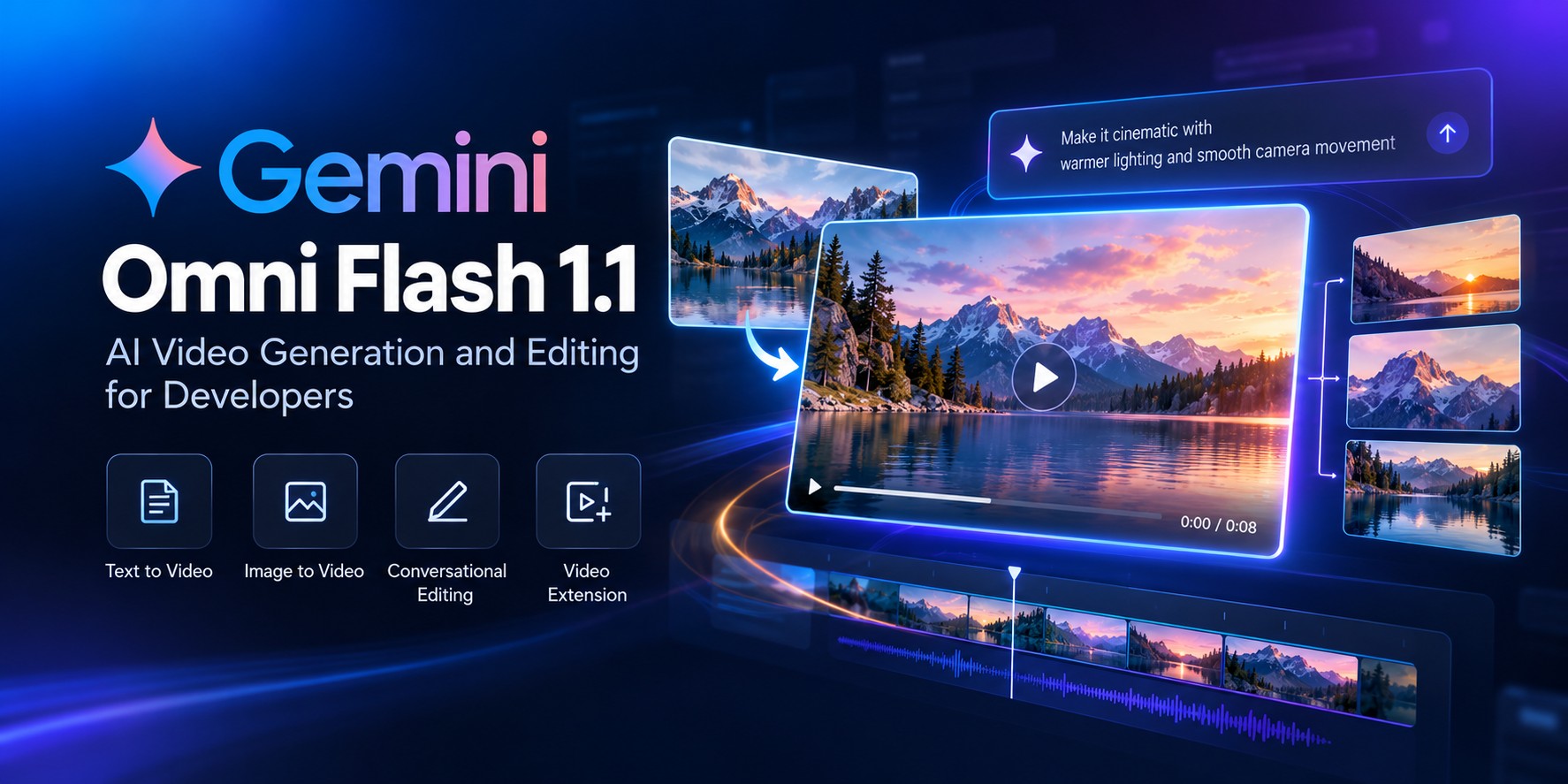
AI video generation is moving beyond turning a text prompt into a short clip. Developers increasingly need tools that can generate videos from images, refine scenes, and integrate video creation into their applications.
Gemini Omni Flash 1.1 is Google's multimodal model for video generation and editing. It supports text-to-video, image-to-video, and conversational editing workflows, giving developers new ways to build video capabilities into their products.
In this guide, we'll cover its main features, technical specifications, real-world applications, API integration, and the limitations to understand before using it.
What Is Gemini Omni Flash 1.1?
Gemini Omni Flash 1.1 is Google's AI model designed for short video generation and editing. It can create videos from text descriptions or images and supports follow-up instructions in supported editing workflows.
For example, you could describe a cinematic shot of a coastal town at sunset, generate a clip, and then request changes to its lighting or camera perspective. The model can use the conversation context to help refine the result, although it may not reproduce every requested detail exactly.
The stable model ID in Google's Gemini API is
gemini-omni-1.1-flash.
This is different from the older preview identifier,
gemini-omni-flash-preview.
For the latest information, consult Google's official model documentation.
Key Specifications
The following table summarizes the main capabilities documented by Google. Check the official reference before using these specifications as production requirements.
| Specification | Details |
|---|---|
| Provider | |
| Stable model ID | gemini-omni-1.1-flash |
| Primary tasks | Video generation and editing |
| Input types | Text, images, and video in supported workflows |
| Video duration | 3–10 seconds per generated clip |
| Frame rate | 24 FPS |
| Output resolutions | 360p, 720p, 1080p, and 4K |
| Default resolution | 720p |
| Aspect ratios | 16:9 and 9:16 |
| Context window | 1,048,576 tokens |
| API interface | Gemini API Interactions API |
Google documents 1080p and 4K output as upscaled. These settings should not be treated as a guarantee of the same native detail as footage originally generated at that resolution.
Reference: Gemini Omni Flash model specifications.
Main Features of Gemini Omni Flash 1.1
1. Text-to-Video Generation
The model can turn a natural-language description into a short video. Prompts can specify the subject, environment, lighting, atmosphere, and camera movement.
This can help creators develop social media clips, marketing concepts, storyboards, and visual prototypes without first producing a complete video shoot.
2. Image-to-Video Generation
You can use an image as visual guidance for a generated video. This is useful when you already have a product photograph, illustration, or landscape image and want to introduce motion.
Describe what should move, how the camera should behave, and how the scene should develop. Review the result for unintended changes to important product details, text, or branding.
3. Conversational Video Editing
Supported editing workflows allow developers to refine video through follow-up instructions. Instead of rebuilding a prompt from scratch, you can request changes in natural language.
- Adjust the scene's lighting or atmosphere.
- Change the appearance of supported visual elements.
- Refine camera movement or composition.
- Iterate on a generated clip with additional instructions.
Results depend on the prompt and model behavior. Follow-up instructions do not guarantee perfect preservation of every visual detail.
4. Video Extension
The model supports extending the end of a video in supported workflows. This can help a shot continue for longer or give an action more time to develop.
Google's documentation describes extensions that add 3–10 seconds, with a supported workflow reaching up to 40 seconds in total. This is not unrestricted long-form video generation.
5. First-Frame and Last-Frame Control
Supported workflows can use starting and ending images to guide a transition. This can be useful for storyboards, product sequences, and visual transitions where the beginning and ending compositions matter.
6. Multiple Resolutions and Generated Audio
The model supports several video resolutions and can generate audio alongside video. The exact audiovisual result depends on the request and generation process, so review both sound and visuals before publishing.
Read Google's Gemini Omni video generation guide for supported workflows and implementation details.
How Does Gemini Omni Flash 1.1 Work?
The basic workflow involves sending a prompt and any supported visual inputs to the model, receiving the generated video, and reviewing the result. Follow-up interactions can be used for supported editing tasks.
- Prepare the prompt: Describe the subject, action, camera movement, and visual style.
- Add reference material: Provide an image or supported video input when required.
- Send the request: Call the Gemini API using the appropriate model ID and request format.
- Review the output: Check motion, composition, sound, and important details.
- Refine the result: Use supported follow-up interactions to request changes.
The exact request format depends on the task. Refer to Google's API documentation before implementing the workflow.
Practical Use Cases
Social Media Content
Creators can generate short clips for promotional posts, creative experiments, and mobile-first content. Portrait video output can be useful for vertical formats.
Product Marketing
Marketing teams can explore product scenes and lifestyle concepts using prompts or reference images. Check the output carefully before using it in a campaign, particularly when product details must remain accurate.
Advertising Concepts
Agencies can experiment with alternative lighting, settings, and camera directions before committing to a full production.
Storyboarding
Filmmakers and designers can create short visual concepts to explore movement, transitions, and scene direction during the planning process.
Creative Applications
Developers can integrate video generation into web applications, internal creative tools, and automated content workflows using the model's API.
Getting Started With the Gemini Omni Flash API
Google documents Gemini Omni Flash access through the Interactions API. The following examples illustrate a basic text-to-video request. Verify the request and response fields against the current SDK documentation before using them in production.
Step 1: Install the Python SDK
pip install -U google-genaiStep 2: Configure API Access
Follow Google's Gemini API quickstart to configure your credentials. Keep API keys in a secure environment variable or server-side secret manager. Never expose secret keys in browser-side JavaScript or public repositories.
Step 3: Generate a Video With Python
import base64
from google import genai

client = genai.Client()

interaction = client.interactions.create(
    model="gemini-omni-1.1-flash",
    input=(
        "A cinematic shot of a coastal town at sunset, "
        "gentle ocean waves, warm natural light."
    ),
)

video_data = interaction.output_video.data

with open("generated-video.mp4", "wb") as video_file:
    video_file.write(base64.b64decode(video_data))

print("Video saved successfully.")
This example follows Google's documented SDK interaction pattern. Add appropriate handling for missing output, API errors, and response formats required by your installed SDK version.
Step 4: Use the REST API
You can also send requests directly to the Interactions API over HTTP.
curl -X POST \
  "https://generativelanguage.googleapis.com/v1beta/interactions?key=${GEMINI_API_KEY}" \
  -H "Content-Type: application/json" \
  -d '{
    "model": "gemini-omni-1.1-flash",
    "input": "A cinematic shot of a forest at sunrise, soft mist and gentle camera movement."
  }'
The REST response structure differs from SDK convenience fields. Follow Google's official API guide for complete response handling and supported parameters.
Tips for Better Video Prompts
A useful prompt explains what should appear in the video and how the scene should unfold. These suggestions can help make your instructions clearer.
- Describe the subject: Identify the main person, product, object, or environment.
- Explain the action: Specify what should happen during the shot.
- Guide the camera: Mention a close-up, tracking shot, slow pan, or wide view when relevant.
- Set the atmosphere: Describe the lighting, mood, and environment.
- Keep the scene focused: A clear central action is easier to evaluate than many unrelated events in a short clip.
- Review the output: Check motion, visual consistency, sound, and important details before publishing.
Example Prompt
A premium skincare bottle on a stone surface near a window.
Soft morning sunlight moves across the background.
The camera slowly pushes in while subtle reflections appear on the glass.
Minimal composition, natural colors, realistic materials.
Prompts provide creative direction rather than guaranteeing an exact result. Important product details, text, and branding may still require review or manual editing.
Limitations to Know
Before using Gemini Omni Flash 1.1 in a production application, understand its documented restrictions.
- Short video output: Standard generated clips are documented as 3–10 seconds.
- Input restrictions: Uploaded videos used for editing or extension are subject to duration limits.
- Regional availability: Editing or extending uploaded videos is restricted in the EEA, Switzerland, and the UK under Google's documented rules.
- Resolution trade-offs: 1080p and 4K output use upscaling.
- Imperfect editing: Follow-up prompts may not preserve every detail or apply every change exactly.
- Reference-video restrictions: Supported reference workflows have limits on the number and duration of clips.
- Audio-reference restrictions: The documented workflow does not support voice editing or uploaded audio references.
- Safety and watermarking: Generated content is subject to Google's safety controls, and Google states that generated videos include an invisible SynthID watermark.
Read the full Gemini Omni documentation before relying on any specific capability.
Gemini Omni Flash 1.1 vs. Other Video Models
The best video model depends on the task, the amount of control required, and how you plan to integrate it into your application.
| Model or family | What to evaluate |
|---|---|
| Gemini Omni Flash 1.1 | Short video generation, conversational editing, image input, and extension workflows. |
| Google Veo models | Generation controls, supported audio and video workflows, and API compatibility. |
| Other video models | Motion quality, consistency, input controls, duration, and integration requirements. |
This is a workflow comparison rather than a benchmark ranking. Test candidate models using the same representative prompts to evaluate which one best fits your requirements.
Explore available options in the WhollyAPI model directory.
Exploring AI Models With WhollyAPI
Developers comparing AI models can start with the WhollyAPI model directory to review listed models and their available API options.
Before integrating a model, verify its current listing, endpoint, supported parameters, and access requirements. A third-party provider's routing identifier may differ from the model ID used by Google's native API.
If your application uses multiple models, test them against your actual requirements before committing to a full workflow.
Frequently Asked Questions
What is Gemini Omni Flash 1.1 used for?
It is used for short AI video generation and editing, including text-to-video, image-to-video, and supported conversational editing workflows.
What is the official model ID?
The stable Google Gemini API model ID is gemini-omni-1.1-flash. Third-party API providers may use their own routing identifiers.
Can it generate videos from text?
Yes. You can describe a scene in natural language and send the prompt through the Gemini API to generate a short video.
Can it animate an existing image?
Yes. Supported image-to-video workflows use an image as visual guidance and a prompt to describe the desired motion.
What resolutions are supported?
The documented options are 360p, 720p, 1080p, and 4K. The 1080p and 4K options use upscaling.
How long can a generated video be?
Standard generated clips are documented as 3–10 seconds. Supported extension workflows can produce longer results under their documented limits.
Can developers use it through an API?
Yes. Google documents access through the Gemini API Interactions API, with examples for Python, JavaScript, and REST.
Can it edit uploaded videos in every region?
No. Google documents regional restrictions for editing and extending uploaded videos, including the EEA, Switzerland, and the UK.
Final Thoughts
Gemini Omni Flash 1.1 is worth evaluating if your application needs short video generation, image-guided creation, or iterative editing through natural-language instructions.
Before using it in production, review its input restrictions, regional availability, output characteristics, and current API documentation. Test it with prompts that reflect your actual use case.
Start with Google's official model reference and video API guide. You can also explore the WhollyAPI model directory to review available AI models.